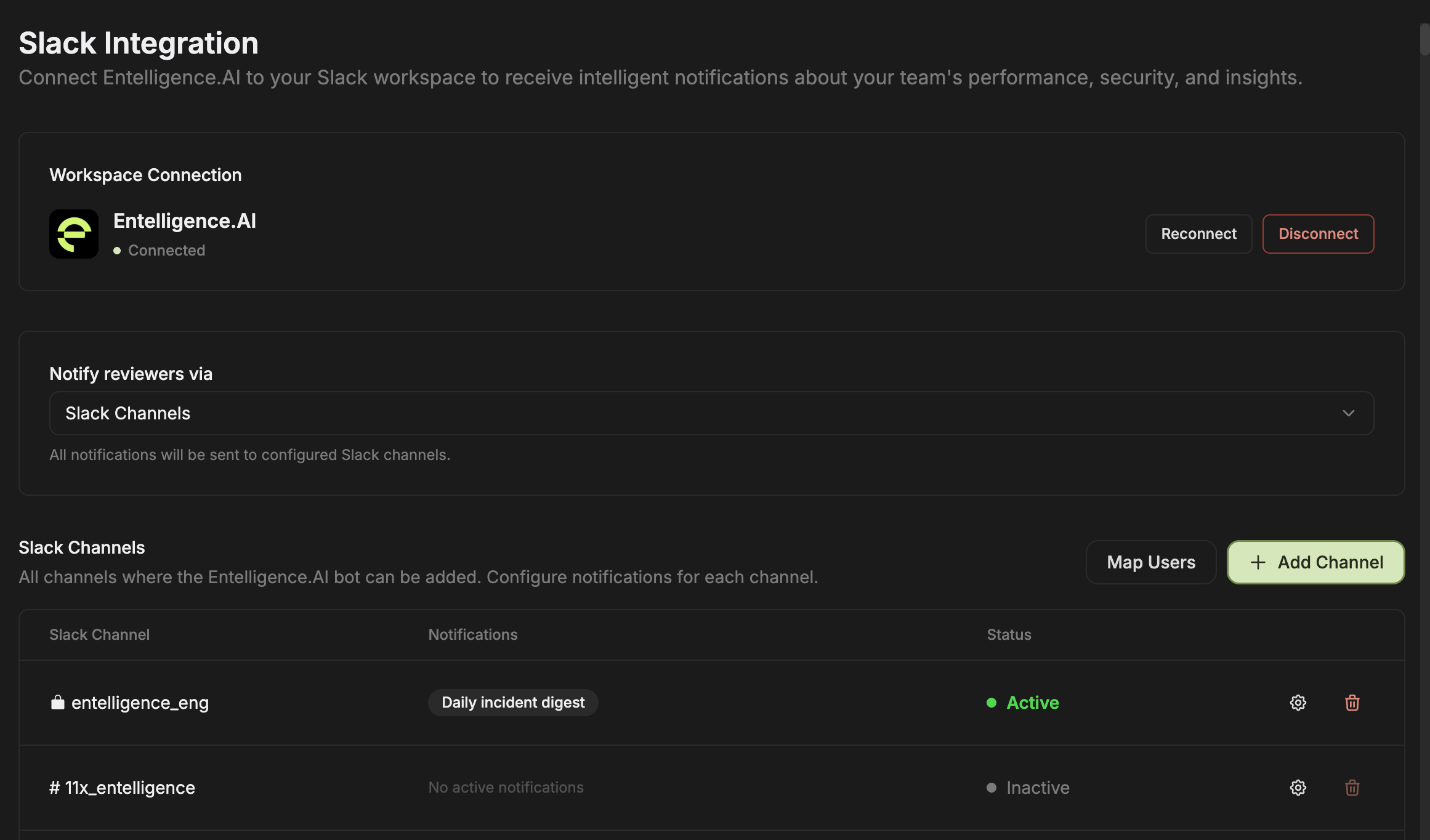
Connect the workspace
- Open Settings → Slack Notification.
- Under Workspace Connection, connect the approved Slack workspace.
- Review the Slack authorization screen.
- Return to Entelligence and confirm the workspace shows Connected.
- Use Reconnect only when replacing or repairing the authorization.
- Use Disconnect only after inventorying dependent channels and workflows.
Choose the delivery mode
The current screen includes Notify reviewers via. Select the delivery route supported by the workspace, such as Slack Channels, and confirm where reviewer notifications will be sent.Add and configure channels
Under Slack Channels:- Select Add Channel.
- Add the Entelligence Slack app to the intended Slack channel when required.
- Use the channel settings control to select the notification types for that channel.
- Confirm the row shows Active when at least one notification is enabled.
- Treat Inactive or No active notifications as no configured delivery for that channel.
Map users
Select Map Users from the Slack Channels area to associate Slack identities with Entelligence members. Verify ambiguous or unmatched identities manually instead of guessing.Channel membership
The Entelligence Slack app must belong to a channel it needs to read or post in. Private channels require explicit membership. A workspace connection alone does not grant access to every conversation.Disconnect and reconnect
Before disconnecting:- Inventory active channels, notification types, incident delivery, and Slack-based workflows.
- Notify the workflow owners.
- Reconnect and test one pilot channel before resuming broader delivery.
- Remove stale channel configurations only after replacement delivery is verified.
Verify
- The workspace shows Connected.
- One pilot channel is listed and Active.
- A configured test notification reaches the intended channel once.
- An unconfigured or unjoined private channel receives nothing.
- A mapped user resolves to the intended Entelligence member.
- Disconnection stops future delivery.