> ## Documentation Index
> Fetch the complete documentation index at: https://doc.entelligence.ai/llms.txt
> Use this file to discover all available pages before exploring further.
# Connect Bitbucket Cloud
> Prepare a dedicated Bitbucket Cloud account and scoped Atlassian API token, complete Entelligence onboarding, and verify repository reviews.
Entelligence documents a dedicated Bitbucket Cloud onboarding flow for automated pull-request reviews. Bitbucket Cloud is not shown as a general **Connector** in the audited workspace.
## Before you begin
You need:
* An Entelligence workspace administrator
* A dedicated Bitbucket Cloud service account
* Membership in the intended Bitbucket workspace
* Access to the pilot repositories
* Permission to create a scoped Atlassian API token
* Approval for Entelligence to create or manage the required webhooks
Reviews and comments are attributed to the owner of the API token. Use a clearly named service account rather than a personal account.
## Create the service account
1. Create or designate a Bitbucket Cloud account used only for Entelligence.
2. Use a dedicated email address and a recognizable display name.
3. Apply the workspace's two-step-verification policy.
4. Grant **Write** access to the target repositories.
5. Grant administrative permissions only where the Entelligence installation requires them for repository, project, or webhook management.
6. Record the credential owner and offboarding process.
## Create a scoped Atlassian API token
1. Sign in to the Atlassian account for the service user.
2. Open [Atlassian API tokens](https://id.atlassian.com/manage-profile/security/api-tokens).
3. Select **Create API token with scopes**.
4. Name the token, set an expiry, and choose **Bitbucket** as the product.
5. Select the scopes shown by the current Entelligence onboarding screen.
6. Create the token and copy it once into an approved secret manager.
The captured Entelligence setup currently lists:
| Scope shown by Entelligence | Purpose |
| ----------------------------- | -------------------------------------------------- |
| `read:account` | Account information requested by the setup |
| `read:user:bitbucket` | Current user profile data |
| `read:repository:bitbucket` | Repository content and metadata |
| `write:repository:bitbucket` | Repository write operations requested by the setup |
| `admin:repository:bitbucket` | Repository administration requested by the setup |
| `read:pullrequest:bitbucket` | Pull-request data |
| `write:pullrequest:bitbucket` | Pull-request actions and review comments |
| `read:issue:bitbucket` | Issue data |
| `write:issue:bitbucket` | Issue actions requested by the setup |
| `read:workspace:bitbucket` | Workspace information |
| `admin:project:bitbucket` | Project administration requested by the setup |
| `read:webhook:bitbucket` | Existing webhook configuration |
| `write:webhook:bitbucket` | Webhook creation or updates |
| `read:pipeline:bitbucket` | Pipeline information |
| `read:runner:bitbucket` | Runner information |
This is the scope checklist shown by the captured Entelligence onboarding screen, not a claim that every scope is the minimum required for every rollout. Atlassian's current API-token permission catalog documents the Bitbucket-specific scopes above but does not list `read:account`. If Atlassian does not offer a scope shown by Entelligence, stop and ask Entelligence support for the updated checklist instead of substituting a different permission.
Atlassian documents that Bitbucket API-token scopes do not automatically imply one another. Review every requested read, write, and admin permission before creating the token.
## Connect the token in Entelligence
Use the deployment-specific Bitbucket onboarding screen:
1. Open **Connect your Bitbucket credentials**.
2. Enter the service account's Atlassian account email.
3. Paste the scoped API token.
4. Select **Connect & Continue**.
5. Confirm a successful connection before choosing repositories.
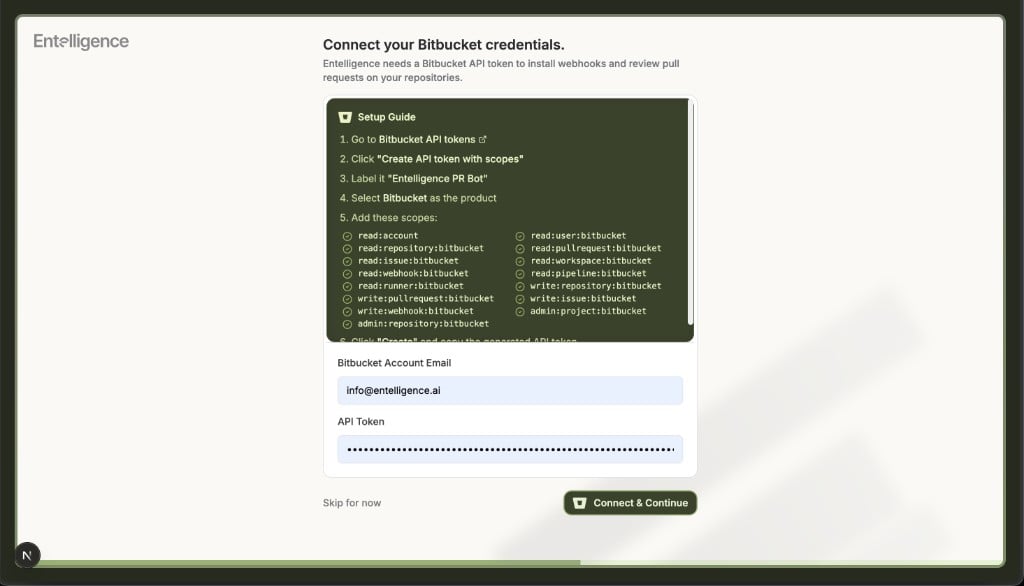 The onboarding flow can request the token during repository installation when no token has already been saved.
## Install on pilot repositories
1. Continue to the Bitbucket workspace and repository selection step supplied by Entelligence.
2. Select only the pilot repositories.
3. Confirm installation.
4. Verify that the required repository or project webhook is created.
5. Open a non-draft test pull request.
6. Confirm the Entelligence service account posts the configured review.
Do not search for Bitbucket Cloud under the general **Connectors** catalog. In a workspace where **Settings → Code Management** exposes the connected Bitbucket repositories, use that page for later synchronization and repository enablement.
## Network and webhook requirements
If the organization allowlists network traffic, request the current Entelligence egress or callback requirements from [support@entelligence.ai](mailto:support@entelligence.ai). Do not reuse another deployment's IP list or webhook URL.
## Verify
* The onboarding screen accepts the service-account email and token.
* Only intended workspaces and repositories are visible.
* The expected webhook exists at the repository or project level.
* A new pilot pull request is detected.
* Reviews are attributed to the dedicated service account.
* An out-of-scope repository is unavailable.
* Revoking the token stops future access.
## Rotate or replace the service account
1. Create a replacement token or approved replacement service account.
2. Update the deployment-specific Entelligence Bitbucket connection.
3. Reconnect or reinstall affected pilot repositories when required.
4. Verify one test pull request.
5. Remove stale webhooks only after the replacement is working.
6. Revoke the old token and remove obsolete repository access.
## Troubleshooting
| Symptom | Check |
| ---------------------------- | -------------------------------------------------------------------------------------- |
| 401 or 403 | Atlassian account email, token value, expiry, scopes, and workspace membership |
| Scope is unavailable | Current Atlassian permission catalog and the current Entelligence onboarding checklist |
| Repositories are missing | Service-account repository access, workspace membership, and Entelligence selection |
| Webhook is missing | Requested admin/webhook scopes and repository or project permissions |
| Pull request is not reviewed | Webhook delivery, non-draft PR state, repository enablement, and review trigger |
| Review has the wrong author | API-token owner and currently connected service account |
For additional help, contact [support@entelligence.ai](mailto:support@entelligence.ai) with the workspace, repository, redacted error, and timestamp. Never send the API token.
The onboarding flow can request the token during repository installation when no token has already been saved.
## Install on pilot repositories
1. Continue to the Bitbucket workspace and repository selection step supplied by Entelligence.
2. Select only the pilot repositories.
3. Confirm installation.
4. Verify that the required repository or project webhook is created.
5. Open a non-draft test pull request.
6. Confirm the Entelligence service account posts the configured review.
Do not search for Bitbucket Cloud under the general **Connectors** catalog. In a workspace where **Settings → Code Management** exposes the connected Bitbucket repositories, use that page for later synchronization and repository enablement.
## Network and webhook requirements
If the organization allowlists network traffic, request the current Entelligence egress or callback requirements from [support@entelligence.ai](mailto:support@entelligence.ai). Do not reuse another deployment's IP list or webhook URL.
## Verify
* The onboarding screen accepts the service-account email and token.
* Only intended workspaces and repositories are visible.
* The expected webhook exists at the repository or project level.
* A new pilot pull request is detected.
* Reviews are attributed to the dedicated service account.
* An out-of-scope repository is unavailable.
* Revoking the token stops future access.
## Rotate or replace the service account
1. Create a replacement token or approved replacement service account.
2. Update the deployment-specific Entelligence Bitbucket connection.
3. Reconnect or reinstall affected pilot repositories when required.
4. Verify one test pull request.
5. Remove stale webhooks only after the replacement is working.
6. Revoke the old token and remove obsolete repository access.
## Troubleshooting
| Symptom | Check |
| ---------------------------- | -------------------------------------------------------------------------------------- |
| 401 or 403 | Atlassian account email, token value, expiry, scopes, and workspace membership |
| Scope is unavailable | Current Atlassian permission catalog and the current Entelligence onboarding checklist |
| Repositories are missing | Service-account repository access, workspace membership, and Entelligence selection |
| Webhook is missing | Requested admin/webhook scopes and repository or project permissions |
| Pull request is not reviewed | Webhook delivery, non-draft PR state, repository enablement, and review trigger |
| Review has the wrong author | API-token owner and currently connected service account |
For additional help, contact [support@entelligence.ai](mailto:support@entelligence.ai) with the workspace, repository, redacted error, and timestamp. Never send the API token.