> ## Documentation Index
> Fetch the complete documentation index at: https://doc.entelligence.ai/llms.txt
> Use this file to discover all available pages before exploring further.
# Slack notifications and delivery
> Connect, reconnect, disconnect, map channels and users, and configure PR, sprint, leaderboard, security, and incident notifications.
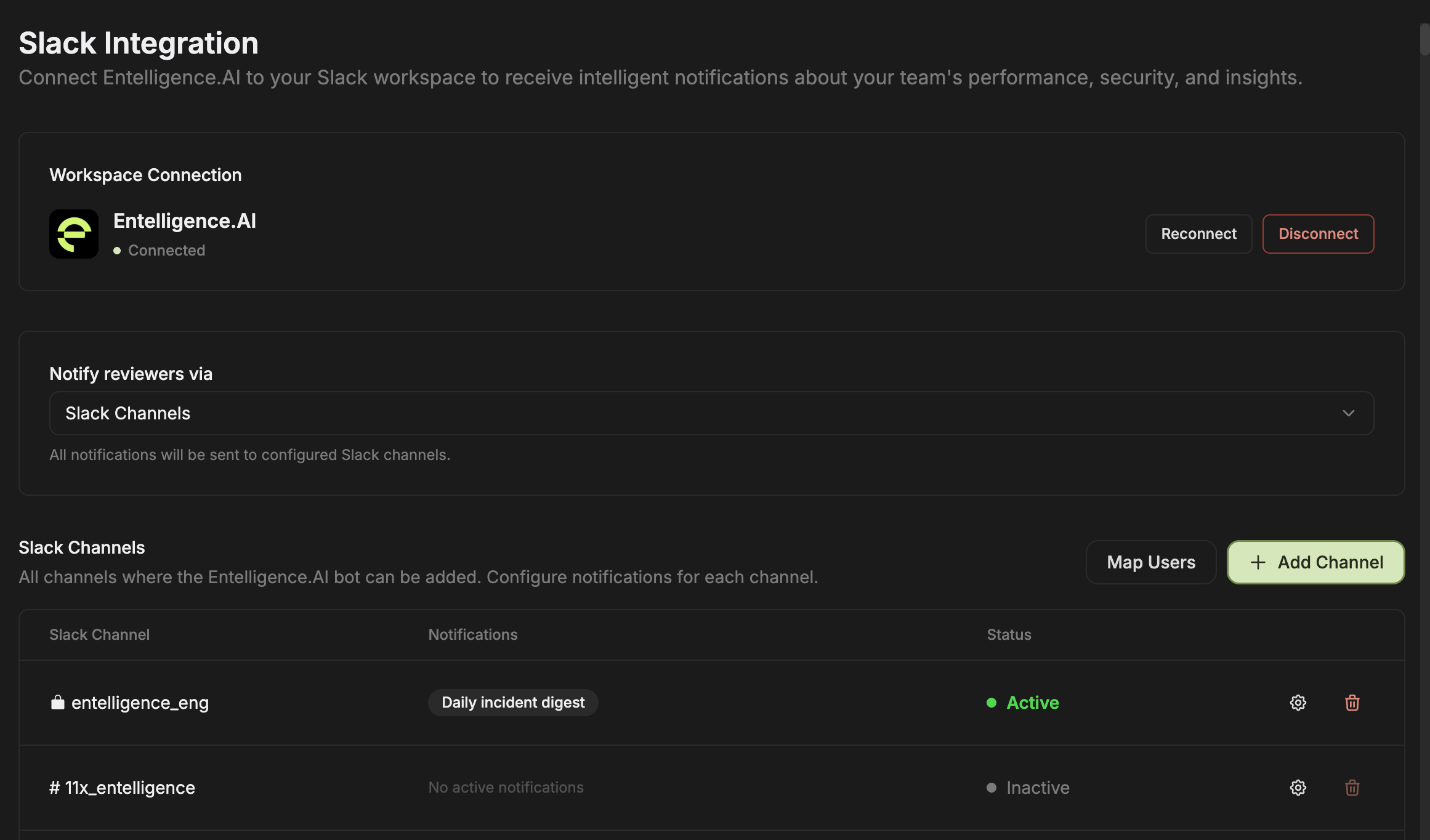
Open **Settings → Slack Notification** to manage Slack delivery. This page is separate from the Slack user-mapping tab under **Settings → Team**.
## Current controls
The Slack Notification page provides:
* Workspace connection status
* **Reconnect** and **Disconnect**
* A delivery selector
* **Map Users**
* **Add Channel**
* Channel rows with notification state and status
* Per-channel configuration and removal
 ## Add and configure a channel
1. Add the Entelligence app to the intended Slack channel.
2. Select **Add Channel** in Entelligence.
3. Choose the channel.
4. Open its configuration.
5. Enable only the notification types that the current configuration dialog offers.
6. Trigger or wait for a test event.
7. Verify destination, content, and status.
The channel list shows whether configured notifications are active. A channel with no enabled notification appears inactive.
## User mapping
Select **Map Users** when member-specific Slack delivery or identity-aware behavior is required. Verify ambiguous matches before enabling direct or personalized delivery.
## Reconnect, disconnect, or remove
Before changing the workspace connection or deleting channel configuration:
1. Inventory active channels and notification owners.
2. Notify channel owners.
3. Record the current configuration if recovery is needed.
4. Check related Pulses and Reactors for overlapping delivery.
5. Reconnect and test one channel before restoring the full set.
## Troubleshoot
| Symptom | Check |
| -------------------------------- | ------------------------------------------------------------- |
| Channel missing | Entelligence app membership and Slack workspace authorization |
| Wrong channel | Channel selection and per-channel configuration |
| Member-specific delivery missing | Slack user mapping |
| Duplicate message | Channel notification, Pulse, and Reactor overlap |
| Channel inactive | At least one notification type is enabled |
| Messages continue after a change | Another channel, workspace installation, Pulse, or Reactor |
## Next step
Use [Ask Ellie in Slack](/ask-ellie/slack) or review [automation safety](/automations/troubleshooting).
## Add and configure a channel
1. Add the Entelligence app to the intended Slack channel.
2. Select **Add Channel** in Entelligence.
3. Choose the channel.
4. Open its configuration.
5. Enable only the notification types that the current configuration dialog offers.
6. Trigger or wait for a test event.
7. Verify destination, content, and status.
The channel list shows whether configured notifications are active. A channel with no enabled notification appears inactive.
## User mapping
Select **Map Users** when member-specific Slack delivery or identity-aware behavior is required. Verify ambiguous matches before enabling direct or personalized delivery.
## Reconnect, disconnect, or remove
Before changing the workspace connection or deleting channel configuration:
1. Inventory active channels and notification owners.
2. Notify channel owners.
3. Record the current configuration if recovery is needed.
4. Check related Pulses and Reactors for overlapping delivery.
5. Reconnect and test one channel before restoring the full set.
## Troubleshoot
| Symptom | Check |
| -------------------------------- | ------------------------------------------------------------- |
| Channel missing | Entelligence app membership and Slack workspace authorization |
| Wrong channel | Channel selection and per-channel configuration |
| Member-specific delivery missing | Slack user mapping |
| Duplicate message | Channel notification, Pulse, and Reactor overlap |
| Channel inactive | At least one notification type is enabled |
| Messages continue after a change | Another channel, workspace installation, Pulse, or Reactor |
## Next step
Use [Ask Ellie in Slack](/ask-ellie/slack) or review [automation safety](/automations/troubleshooting).